

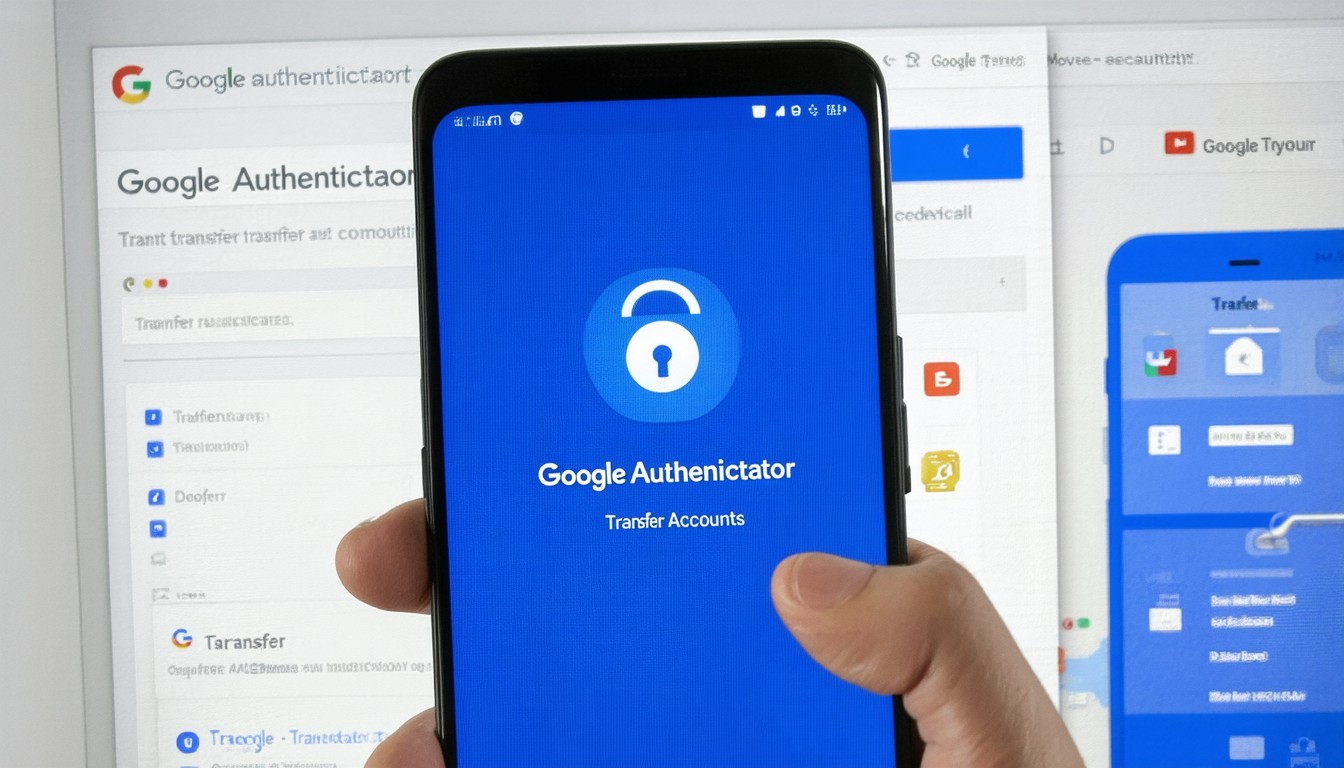
With growing concerns around online privacy and data breaches, digital security is no longer optional—it’s essential. Two-factor authentication (2FA) has become a gold standard for account protection, and Google Authenticator stands at the heart of this movement. As users upgrade their smartphones or simply need to migrate their digital lives, the ability to transfer Google Authenticator accounts securely and efficiently has become a pressing need. The introduction of Google Authenticator’s transfer feature addresses this challenge head-on, ensuring that robust security measures don’t come at the expense of user convenience.
Understanding Google Authenticator Transfer: Why It Matters
Google Authenticator generates time-based one-time passwords (TOTPs) used for 2FA verification, providing an extra layer of defense beyond passwords. Previously, moving 2FA codes to a new device was tedious—often involving disabling and re-enabling 2FA for each account manually. This often resulted in lockouts and, in the case of business accounts, productivity bottlenecks.
With the transfer feature, Google now allows users to export all or selected accounts from one device to another in a few seamless steps.
“The ability to securely migrate 2FA tokens is a game changer for both enterprise IT support teams and individual users, as it not only slashes downtime but dramatically reduces the risk of accidental lockouts,” says Michael Driscoll, cybersecurity consultant.
The feature is especially timely, given the growing adoption of remote work and device upgrades. The ability to transfer 2FA tokens quickly streamlines transitions, all while maintaining robust security.
Step-by-Step Guide: How to Use Google Authenticator Transfer
Google’s Authenticator transfer process is designed to be straightforward but secure. Here’s a walk-through to move your 2FA codes to a new phone efficiently:
1. Preparation: Ensure Both Devices Are Ready
- Old device: Updated Google Authenticator app installed
- New device: Installed and ready with Google Authenticator (available on both Android and iOS)
Before starting, make sure you have physical access to both devices and that your apps are up to date, as older versions may lack the transfer capability.
2. Exporting Accounts from Your Old Device
- Open Google Authenticator on the old device.
- Tap on the three dots or “More” option in the top corner.
- Select Transfer accounts.
- Choose Export accounts.
- Confirm your identity (PIN, pattern, or biometrics, depending on your device settings).
- Select the accounts you want to export. You can choose multiple or all.
- A QR code (or series of QR codes, if you have many accounts) will be generated.
3. Importing Accounts on the New Device
- Open Google Authenticator on the new device.
- Navigate to Transfer accounts, then select Import accounts.
- Use the device camera to scan the QR code displayed on your old device.
- Once scanned, your accounts will appear in the new Authenticator app.
Note: The codes will now appear on both devices, so remember to clear out the old device or remove accounts to avoid unauthorized use.
Security Best Practices for Transferring Google Authenticator
Moving sensitive security credentials demands more than just technical know-how. Here’s what industry professionals recommend to ensure your migration is truly secure:
Protect Physical Access
Anyone with both devices could potentially transfer your 2FA tokens. Complete the process in a secure environment—preferably at home or in a trusted office, not on public Wi-Fi or in crowded spaces.
Backup and Redundancy
Before any digital migration, review and, if possible, back up account recovery keys. Leading tech publications often warn that losing 2FA access can be catastrophic, especially if backup codes or alternative verification methods are not set up.
Remove Authenticator Accounts from Old Device
Right after confirming all accounts are present and functioning on your new device, remove them from the old device. This step reduces risk of a lost or stolen phone providing unwanted access.
Consider Encrypted Backups
While Google Authenticator’s transfer feature greatly simplifies migration, it’s worth noting that the app does not offer cloud backup (unlike some alternatives such as Authy). For those seeking additional redundancy, securely storing backup codes offline remains vital.
Real-World Scenarios: When Google Authenticator Transfer Proves Critical
Device Upgrade Cycles
Smartphone upgrades are frequent—market data suggests many users refresh devices every two to three years. The streamlined transfer process means switching devices is now quick and frustration-free, instead of a day-long ordeal.
IT Support in the Enterprise
For organizations managing hundreds of employee devices, lockouts due to 2FA loss can paralyze user productivity. Google Authenticator’s transfer feature reduces the support tickets IT teams receive and helps secure seamless continuity of work.
Addressing Lost or Broken Devices
When a device is irreparably damaged or lost, previously the lack of backup options could spell disaster. Although the new transfer feature does require access to the old device, its easy process means fewer people risk losing vital account access during planned migrations.
Pros and Cons: A Balanced Perspective on Google Authenticator Transfer
Advantages
- Efficiency: Transfer all or select accounts with a few taps.
- Security: Accounts are moved using QR codes, not sent via the cloud or unencrypted links.
- User-Friendly: Intuitive process reduces technical hurdles.
Limitations
- No Cloud Backup: Losing both the old and new devices simultaneously could still mean permanent loss of 2FA access.
- Requires Physical Access: Both devices must be available; cannot transfer remotely.
Conclusion: Securing the Future with Convenient Account Transfers
Google Authenticator’s transfer feature represents a critical advance for everyday digital security. By dramatically simplifying what was once a technical pain point, it helps ensure that everyone—from casual users to enterprise IT teams—can maintain strong 2FA protection without skipping a beat. While it doesn’t eliminate all risks, and wise users will still store recovery keys securely, it removes one of the largest practical barriers to account safety during device upgrades.
Staying vigilant and adhering to best practices during the transfer process ensures that improved convenience doesn’t come at the cost of security.
FAQs
How do I transfer Google Authenticator to a new phone?
Install Google Authenticator on your new phone, then use the “Transfer accounts” feature on your old device to generate a QR code, which you scan with the new device. This imports your authentication codes quickly and securely.
Do I need both phones to transfer my accounts?
Yes, the transfer process requires physical access to both the old and new devices. If the old phone is lost or inaccessible, recovery options depend on individual account backup codes or recovery methods.
Is transferring Google Authenticator codes safe?
The process is designed to be secure, using on-device QR codes rather than cloud-based transfers. To maximize safety, carry out the transfer in a secure location and remove accounts from your old phone after migration.
What should I do if I lose access to both devices?
Without access to either device, recovery relies on backup codes or your account providers’ support channels. It’s wise to store backup codes securely when setting up 2FA.
Is there a way to transfer codes without a QR code?
No, Google Authenticator’s official transfer process uses QR codes created on the old device. Some third-party apps may allow different methods, but they may not be recommended for all users due to security considerations.
Does the transfer move all codes or can I select which to transfer?
You have the option to select which accounts to export, allowing you to move only the codes you need to your new device. This is helpful if you’re consolidating or slimming down accounts during migration.












Leave a comment